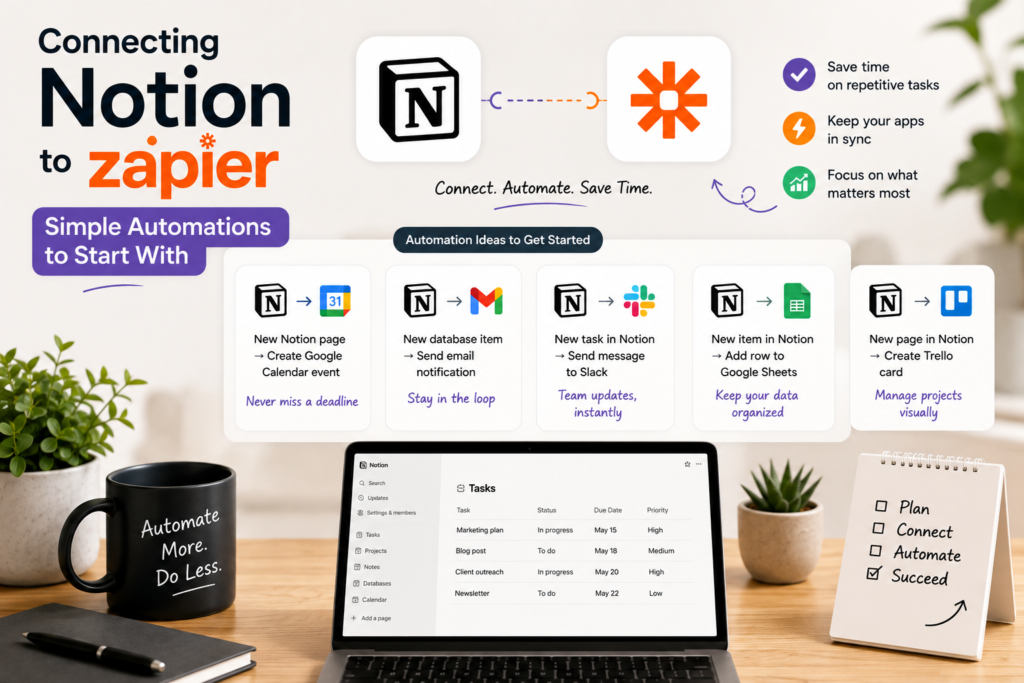
Notion is great at holding information. Zapier is great at moving it. Put them together and you can stop manually re-typing the same task, lead, or note into three different tools every day.
If you’ve never connected the two before, this is a practical starting point: what the integration can actually do, a handful of beginner-friendly automations to build first, and a few limitations worth knowing before you get too far into it.
What the Notion-Zapier connection can actually do
Zapier’s Notion integration gives you a set of triggers (events in Notion that start a workflow) and actions (things Zapier does in Notion, or elsewhere, once triggered).
The most useful triggers to know:
- New database item — fires when a new item is added to a database you specify
- Updated database item — fires when an existing item’s properties change
- New comment — fires when someone comments on a page
- Page content updated — fires when the content within a page changes
And on the action side, the ones you’ll reach for most often:
- Create database item — adds a new item to a specified database
- Update database item — changes properties on an existing item
- Add content to page — appends new blocks (paragraphs, headings, to-dos, and more) to an existing page
- Find database item — searches for an existing item, often used to check whether something already exists before creating a duplicate
Everything below is really just different combinations of those triggers and actions.
Three simple automations to start with
1. Turn form submissions into Notion database items
If leads, applications, or requests come in through a form (Typeform, Google Forms, your website’s contact form), you can skip the copy-paste step entirely.
- Trigger: New form submission
- Action: Create database item in Notion, mapping the form fields to your database’s properties
This is usually the very first automation people build, because the win is obvious and the setup takes only a few minutes.
2. Sync new Notion tasks to your calendar
Covered in more depth in our Notion-Google Calendar guide, but worth mentioning here too: this is one of the most common Notion-Zapier pairings.
- Trigger: New database item in your Tasks database
- Action: Create a detailed event in Google Calendar, using the task’s due date and title
3. Get notified when something important changes
Rather than checking a Notion database manually to see if a status changed, let Zapier tell you.
- Trigger: Updated database item (filtered to a specific database, and ideally a specific property, like a “Status” field)
- Action: Send a Slack message or email notifying you of the change
This pattern — trigger on update, notify a human — is one of the simplest ways to keep a team in the loop without anyone needing to babysit a Notion page.
A few things to know before you build
Field limits exist. Notion’s API caps each content block at 2,000 characters, so very long text pushed in from another app may get cut off or need to be split across multiple blocks.
Rate limits apply. Zapier’s Notion integration is limited to a few requests per second on average, which matters if you’re bulk-importing a large number of items at once — it may take longer than you’d expect.
Multi-select fields get overwritten, not appended. If your automation updates a multi-select property, it replaces the existing values rather than adding to them. If you need to preserve existing tags or categories, you’ll need an extra step to read the current values first and merge them in.
Editing page content doesn’t trigger “new item” automations. If your workflow depends on detecting changes to a page’s actual content (not its database properties), double check which trigger you’re using — some triggers only fire on property changes, not content edits.
When you might not need Zapier at all
Notion has been building out its own native automations (things like scheduled reminders and simple conditional actions triggered from within Notion itself). If your entire workflow starts in Notion and ends in Notion or Slack — no other app involved — it’s worth checking whether Notion’s built-in automations can now handle it natively before reaching for Zapier. For anything that needs to cross into a third-party app like Google Calendar, your CRM, or a form tool, Zapier is still doing work Notion can’t do on its own.
Final thoughts
You don’t need to plan out a dozen workflows before you start. Pick the one manual copy-paste task that annoys you most, build a single trigger-and-action Zap for it, and get comfortable with how Notion’s triggers and actions behave. Once that one is running reliably, the next automation is usually obvious.
