Tag: Apps

  • Breaking Down Big Projects Without Overwhelm

    Breaking Down Big Projects Without Overwhelm

    You open your to-do list, see “launch the website” or “plan the move” sitting there in one lonely line, and close the laptop again. Sound familiar? A 2025 look at ADHD coaching data found that vague, oversized tasks are one of the top reasons people freeze before they even start.

    The problem usually isn’t motivation. It’s that your brain can’t find a door into the task. When a project stays one giant blob, there’s no obvious first move, so you stall, scroll, or reorganize your desk instead. Learning how to break down a big project into smaller steps fixes that, and it’s a skill, not a personality trait.

    This guide walks through why big projects trigger overwhelm in the first place, and gives you a practical process for turning “revamp the website” into a list you can actually start today.

    Why Do Big Projects Feel So Overwhelming?

    Your working memory can only hold so much at once, roughly four to seven items according to most cognitive research. A big project doesn’t fit in that space. It arrives as a fuzzy cloud of deadlines, dependencies, and half-formed steps, and your brain treats that ambiguity as a threat rather than a task.

    That’s why “clean the garage” feels heavier than it should. The task itself isn’t hard. What’s hard is holding twenty invisible sub-decisions in your head at the same time: where to start, what to keep, where the donation pile goes, whether you need bins. Once you write those decisions down as separate lines, each one gets easy. The overwhelm was never about effort. It was about the missing map.

    There’s also a timing piece to this. Big, undefined tasks sit further away from any payoff, so your brain has less reason to engage with them right now. A single email reply pays off in two minutes. “Relaunch the brand” pays off in three months, if it pays off at all in your head today. Shrinking the project pulls the reward closer, which is a big part of why a broken-down list actually gets worked on instead of just admired from a distance.

    How Do You Break a Project Into Smaller Steps?

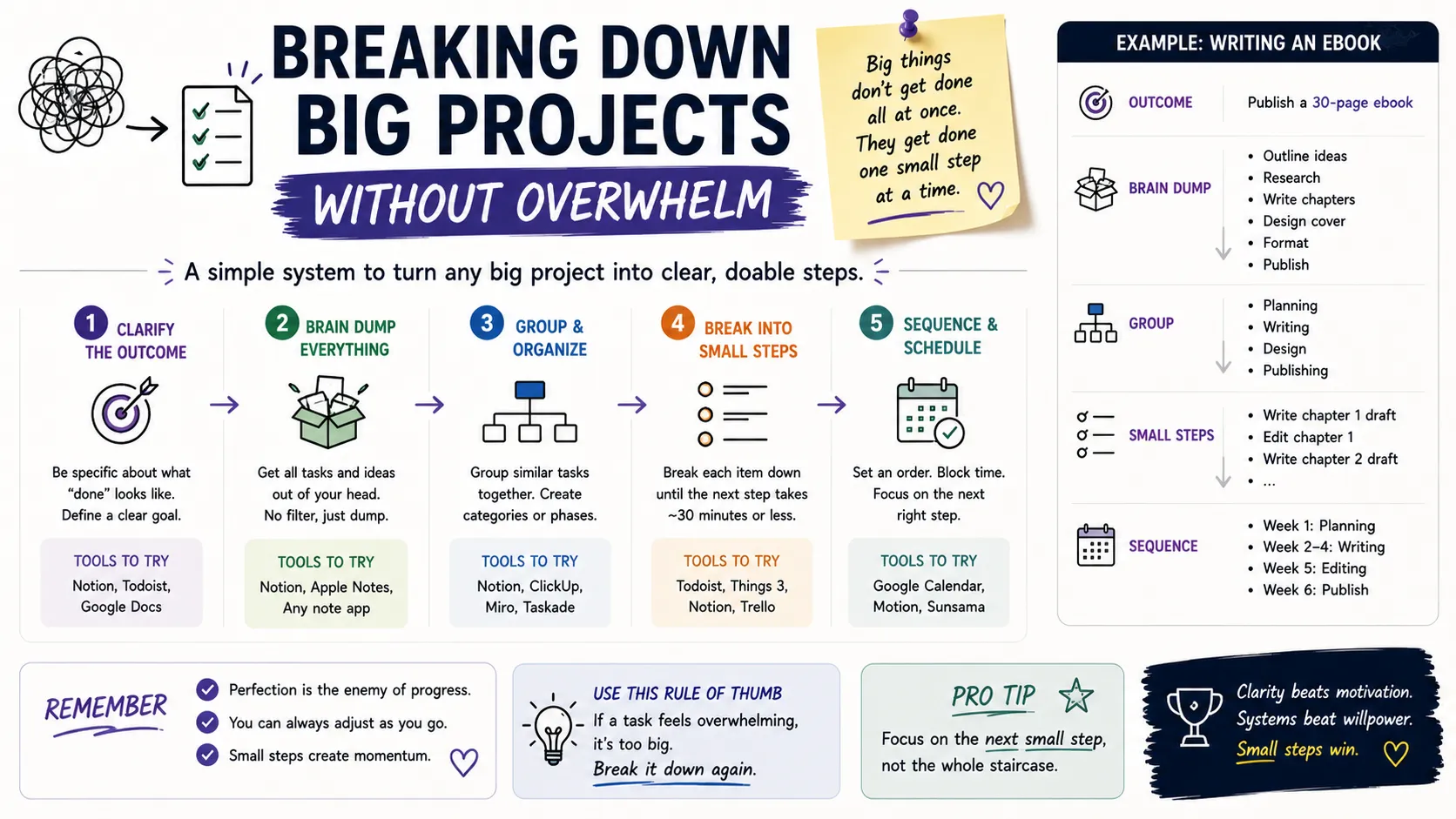
    Start by writing down the finished result in one plain sentence, then work backward.

    1. Define the actual outcome. Not “improve the website,” but “publish 10 revised product pages by September 1.” A vague goal produces vague steps.
    2. Brain-dump everything that has to happen, in no particular order. Get it out of your head and onto paper before you try to organize it.
    3. Group the dump into phases. Research, drafting, review, and launch, for example.
    4. Shrink each phase into tasks small enough to finish in one sitting. If a task takes more than 90 minutes or you can’t picture doing it, split it again.
    5. Order the tasks by dependency, not by importance. Some steps can only happen after others; figure out that chain before you worry about priority.
    6. Assign a next action to the very top item. Not “start research,” but “open Google Docs and list five competitor sites.”

    A task like “write the report” stays paralyzing because it hides five decisions inside one label. Broken apart, it looks more like this: outline the sections, draft the intro, pull three supporting stats, write section one, proofread. Each piece is small enough that starting doesn’t require willpower, just fifteen minutes.

    Vague Task
    Broken-Down Version
    Plan the move
    Get 3 moving quotes, book a date, pack the closet, label boxes by room
    Write the report
    Outline sections, draft intro, pull supporting data, write section 1, proofread
    Launch the website
    Finalize copy for homepage, choose 5 stock images, test checkout flow, schedule launch email
    Redo the budget
    List all expenses, categorize by fixed/variable, set 3 savings targets, pick a tracking app

    What’s the Right Size for a Task?

    A good rule of thumb: if you can’t picture the physical first move, the task is still too big. “Get healthier” isn’t a task, it’s a direction. “Walk 20 minutes on Tuesday and Thursday” is a task. Coaches who work with ADHD clients often use a simple test here: if a step still feels vague after you’ve broken it down once, break it down again until it does.

    Aim for chunks that take somewhere between 15 and 90 minutes. Shorter than that and your list turns into busywork with too many entries to track. Longer than that and the old overwhelm creeps back in, because a 4-hour block still has hidden sub-steps buried inside it.

    How Do You Stay on Track Once the Project Is Broken Down?

    Breaking a project apart is only half the job. The other half is tracking progress without losing the thread.

    • Use one system, not five. A single running list in Notion, Trello, or even a plain notebook beats scattered notes across apps and sticky notes.
    • Check off small wins visibly. Crossing an item off a physical or digital list gives a real, if tiny, sense of momentum, and that momentum is what keeps you moving to the next item.
    • Batch similar tasks. Grouping all your emails, all your calls, or all your writing tasks into one block cuts down on the mental cost of switching gears.
    • Review weekly, not daily. A short Friday check-in to reorder next week’s tasks keeps the plan realistic without turning planning itself into a time sink.
    • Build in a buffer. Estimate how long a phase will take, then add 20%. Almost every project runs long, and padding the schedule up front avoids the late-stage scramble.

    If you find yourself avoiding a specific task for more than a couple of days, treat that as information. It usually means the task is still too big, too vague, or missing a clear first action, not that you’re lacking discipline.

    Take “update the client proposal,” a task that sat untouched on one freelancer’s list for nine days before she finally split it into “reread the old proposal,” “swap in new pricing,” and “send for review.” Each piece took under twenty minutes. The task hadn’t gotten any smaller in reality; it had just been named badly. That’s the pattern worth watching for in your own list: repeated avoidance almost always points back to a task that needs one more round of breaking down, not one more ounce of willpower.

    Final Thoughts

    Big projects don’t get less overwhelming because you push harder. They get less overwhelming because you make them smaller. Write down the real outcome, brain-dump the pieces, shrink each one until the first move is obvious, and track progress in a single place you actually check.

    Start with just one project on your plate right now. Pick the task at the very top, break it into a step you could finish in the next twenty minutes, and do that one thing before you do anything else.

    Frequently Asked Questions

    Why do I procrastinate on big projects even when I have plenty of time?

    Procrastination on large projects is usually a signal that the first step isn’t clear, not a lack of time or motivation.

    How many steps should a project be broken into?

    There’s no fixed number. Keep splitting a task until each piece is something you can start without further thinking, generally 15 to 90 minutes of focused work.

    What tools help with breaking down projects?

    Simple task managers like Trello, Notion, Todoist, or even a paper notebook work well.

    Is breaking down tasks especially helpful for ADHD?

    Yes. Executive function research consistently shows that adults with ADHD manage large, multi-step projects better when tasks are chunked into small, concrete actions with clear starting points, since this reduces the working-memory load that triggers avoidance.
  • Managing Time Blindness with Digital Tools: A Step-by-Step Guide

    Managing Time Blindness with Digital Tools: A Step-by-Step Guide

    You checked your phone. It said 2:14. You checked again, certain only a few minutes had passed, and it said 3:40. Nothing about that hour felt real. That gap between how time feels and how time actually moves is time blindness, and if it happens to you often, you already know how much damage it does to deadlines, appointments, and your own sense of trust in yourself.

    Time blindness shows up most often with ADHD, but it isn’t limited to it. Anyone with a busy, distraction-heavy schedule can lose track of how long a task takes or how much time is left before the next commitment. The good news is that your phone and computer, the same devices that often make focus harder, can also be turned into a working set of time blindness tools. This guide walks through what actually helps, app by app, habit by habit.

    What Is Time Blindness, Exactly?

    Time blindness is difficulty sensing the passage of time without an external cue. It’s not laziness and it’s not a character flaw. Occupational therapists describe it as a breakdown in executive function, the brain’s internal “clock” that’s supposed to estimate duration and prompt transitions between tasks.

    For someone without time blindness, an internal sense nudges them: it’s probably been twenty minutes, I should wrap this up. For someone with it, that nudge doesn’t fire. Twenty minutes and two hours can feel identical from the inside. That’s why external, visual, and auditory tools matter so much here. They replace the internal clock the brain isn’t reliably producing.

    Common signs include:

    • Arriving very late or absurdly early, with no in-between
    • Losing an entire afternoon to a task that “felt like ten minutes”
    • Chronic difficulty estimating how long errands, chores, or work will take
    • Missing appointments despite genuinely intending to be there
    • A pattern of last-minute cramming, even for things planned weeks ahead

    How Do Digital Tools Actually Help With Time Blindness?

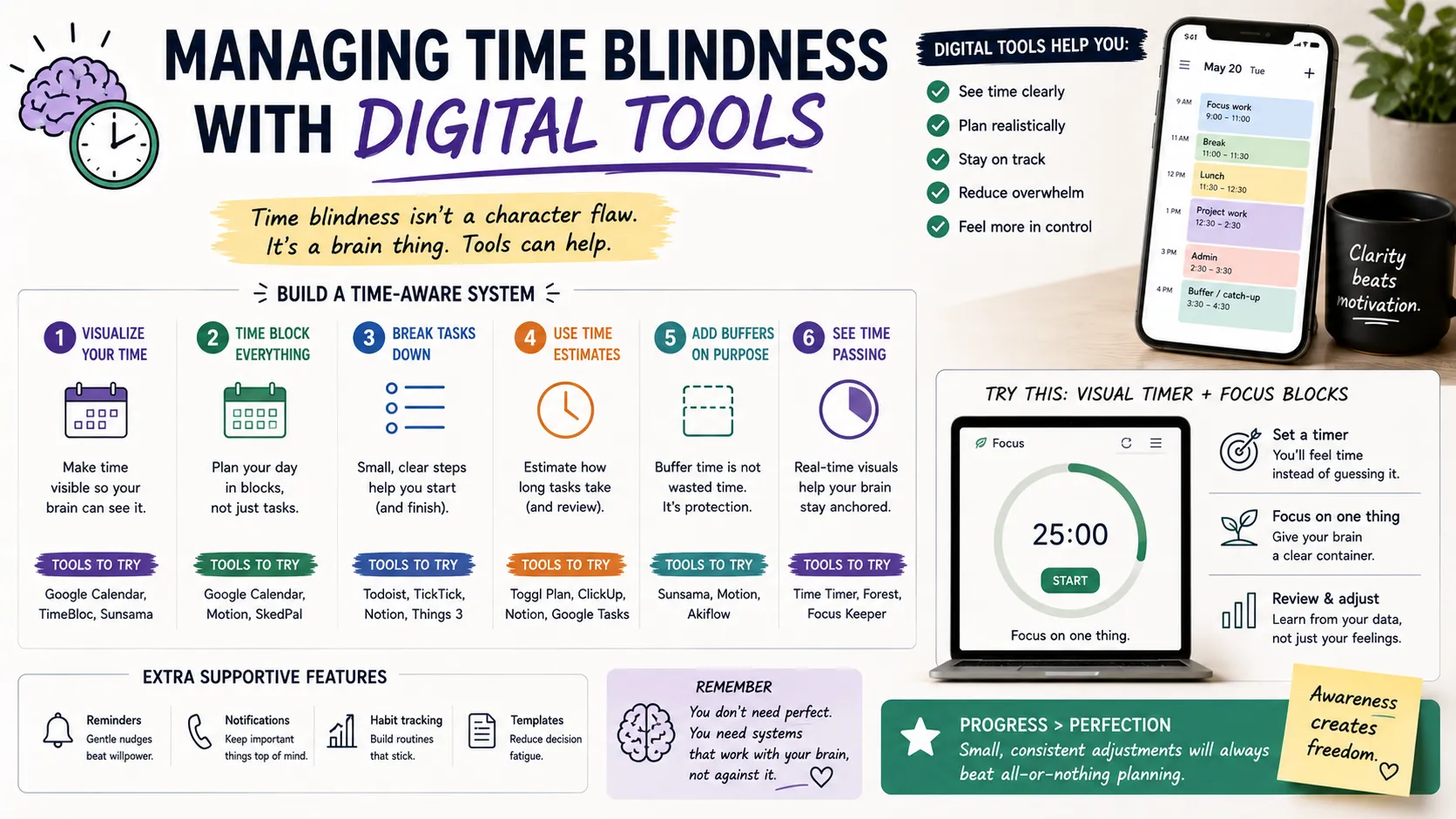
    Digital tools work by externalizing time. Instead of relying on a felt sense of duration, you outsource that job to something you can see, hear, or feel buzz in your pocket. The goal isn’t a single miracle app. It’s stacking a few tools that cover different weak points: starting tasks, tracking duration, and remembering commitments.

    Below is a comparison of the main tool categories worth trying, based on what shows up most often in ADHD and productivity communities.

    Tool Type Best For Example Apps Cost
    Visual timers Making elapsed time visible during a task Time Timer, Time Blindness Visualizer Free–$35
    Pomodoro apps Breaking work into focus/break intervals Pomofocus, Forest Free–$4/mo
    Digital calendars Scheduling and pre-commitment Google Calendar, Fantastical Free–$5/mo
    Task time estimators Predicting how long a task will take Goblin Tools, Todoist Free–$5/mo
    Widget-based reminders Keeping time and tasks visible at a glance iOS/Android widgets Free

    Visual Timers

    A number on a screen doesn’t register the same way a shrinking shape does. Visual timers, like a ring or wedge that physically gets smaller, give your brain something closer to a felt sense of time running out. This matters because reading “14:32 remaining” still requires interpretation, and interpretation is exactly the step that time blindness disrupts.

    Set one for any task with a real endpoint: a work sprint, a shower, a phone call you know tends to run long. The visual cue does the estimating for you.

    Pomodoro and Focus Apps

    Pomodoro apps split work into short, timed intervals, usually 25 minutes on and 5 minutes off. For time blindness specifically, the value isn’t really the productivity technique. It’s the forced checkpoint. Every 25 minutes, something interrupts you and asks: are you still on task, and how much time has actually gone by? Apps like Pomofocus or Forest add a small visual or gamified element, which tends to hold attention better than a plain kitchen timer app.

    Digital Calendars and Pre-Commitment

    A calendar only helps with time blindness if it’s loud enough to be noticed. Passive entries that sit quietly in an app don’t do much. What works better is stacking alerts: a reminder the night before, one an hour before, and one at the moment you need to leave. Google Calendar and Fantastical both support multiple alerts per event, and that redundancy matters more than which app you pick.

    Buffer time is worth building in deliberately too. If a meeting starts at 10, set the calendar block to start at 9:45, with the label “leave now” rather than the meeting’s actual name. That small rename does a lot of the cognitive work for you.

    Task Time Estimators

    One of the sneakier parts of time blindness is chronically misjudging how long things take, usually underestimating. Tools like Goblin Tools include an estimator feature: describe the task, and it gives a rough time range based on similar activities. It won’t be perfect, but even a rough anchor is more useful than guessing from scratch, especially for tasks you don’t do often enough to have built intuition around.

    Widgets and Ambient Visibility

    The tools above only work if you actually see them. A reminder buried three taps deep in an app might as well not exist. Home-screen widgets for your calendar, to-do list, and a running clock keep time visible without requiring you to remember to check anything. On iOS and Android alike, this is a five-minute setup that pays off every single day.

    Building a Simple Daily System

    Individual apps help, but the real shift happens when a few of them work together as a routine. Here’s a workable starting setup:

    1. Morning: Open your calendar widget first thing and physically read through the day’s blocks, not just glance at them.
    2. Before each task: Set a visual timer or start a Pomodoro session, even for tasks that feel too small to time.
    3. Before leaving anywhere: Trust the calendar alert, not your own sense of “I have plenty of time.” That sense is exactly what’s unreliable.
    4. End of day: Spend two minutes comparing what you planned against what actually happened. Over a couple of weeks, this reveals your personal blind spots, like consistently underestimating commute time or overestimating how fast you write emails.

    Frequently Asked Questions

    Is time blindness a real medical condition?

    Time blindness itself isn’t a standalone diagnosis, but it’s a recognized and well-documented symptom of ADHD and some other executive function conditions. It reflects a real difference in how the brain processes duration, not a lack of effort.

    What is the best free app for time blindness?

    There’s no single best option, since it depends on which part of time blindness trips you up most. Goblin Tools is a strong free choice for task estimation, Pomofocus for focus intervals, and Google Calendar for scheduling with multiple alerts.

    How long does it take to build a habit around these tools?

    Most people notice a difference within one to two weeks, though building it into an automatic habit tends to take closer to a month. Consistency matters more than finding the “perfect” app on day one.

    Do I need multiple apps, or will one be enough?

    One tool alone rarely covers everything. A calendar handles scheduling, a timer handles duration, and a task estimator handles planning. Most people end up combining two or three rather than relying on a single all-in-one solution.

    Final Thoughts

    Time blindness isn’t something you fix by trying harder to “be more aware.” It responds to structure you can see, hear, and feel, not willpower alone. Start with one tool, a visual timer is usually the easiest entry point, and add a second once the first one has actually stuck. Small, boring consistency beats a perfectly optimized system you abandon after a week.

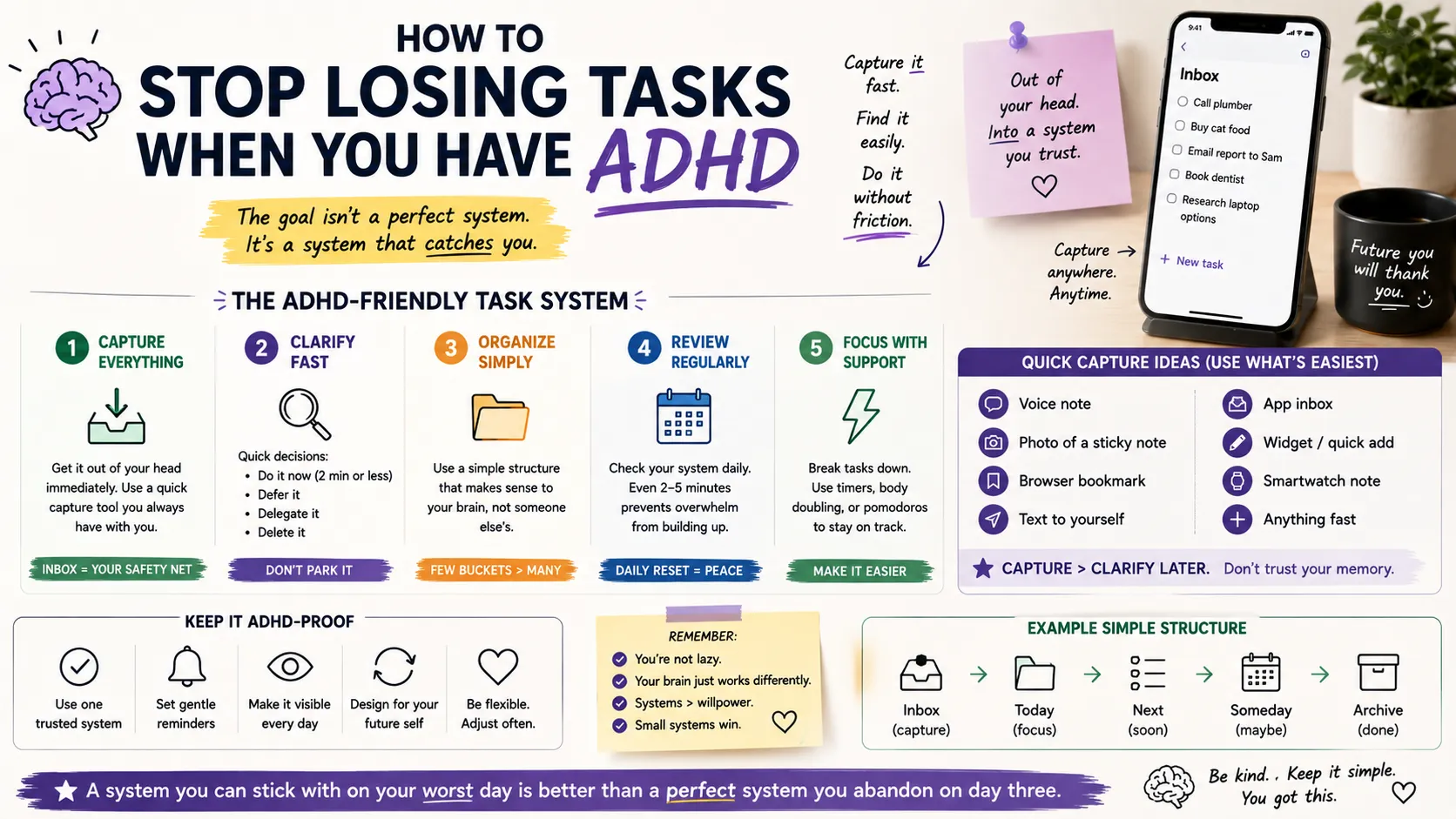
  • How to Stop Losing Tasks When You Have ADHD (Any App)

    How to Stop Losing Tasks When You Have ADHD (Any App)

    Somewhere in your phone right now, there’s probably a task you swore you’d remember without writing down. Maybe it’s a reply you owe someone, a bill, a thing your kid asked for last Tuesday. If you have ADHD, that task didn’t get lost because you’re careless. It got lost because your brain treats “out of sight” as “doesn’t exist yet.”

    This isn’t really an app problem, even though app store reviews are full of ADHD folks blaming the software. You can hop from Todoist to Notion to a paper planner to Apple Reminders and lose tasks in every single one, because the failure point is almost never the tool. It’s the handoff between the moment a task enters your head and the moment it lands somewhere permanent.

    Below is a system that works whether you’re using a $50-a-year app, a free one, or a stack of sticky notes.

    Why Do People With ADHD Lose Tasks in the First Place?

    ADHD affects working memory, the part of your brain that holds information active while you’re using it. Neurotypical brains can juggle a thought for a few minutes without effort. ADHD brains often lose it in seconds, especially if something else grabs attention in between: a notification, a smell, a random thought about dinner.

    A few specific patterns show up over and over:

    • The task never left your head. You thought about writing it down. Thinking about it felt like enough. It wasn’t.
    • You wrote it somewhere temporary. A sticky note, the notes app, a random Slack message to yourself, and then it got buried under forty other things.
    • You wrote it down correctly, but never looked at that list again. This is the most common one, and it’s rarely talked about. Capture isn’t the hard part for most ADHDers. Review is.
    • The task was written down vaguely. “Follow up with landlord” doesn’t tell your brain what to actually do, so it gets skipped every time you scan the list.

    Task paralysis makes all of this worse. When a list has twelve unsorted items, an ADHD brain often can’t pick where to start, so it picks nothing, and the whole list quietly becomes background noise.

    What Actually Fixes This (Regardless of App)

    Cut the Number of Capture Points to One

    If you’re jotting tasks in your notes app, a notebook, three group chats, and your email drafts folder, you don’t have a task system. You have five half-systems, and half-systems lose things. Pick a single place tasks are allowed to live. It genuinely does not matter which app; what matters is that it’s the only one.

    Capture Immediately, Not “In a Minute”

    The gap between thinking of a task and writing it down is where most tasks die. If your capture tool takes more than about five seconds to open (unlocking your phone, finding the app, tapping through a menu), you will skip it half the time. Voice memos, a widget on your home screen, or a physical notepad on your desk all cut that friction down. Automation tools help here too: a lot of ADHD users set up a quick capture flow with something like Zapier or n8n so a text message, a Slack DM, or even a voice note automatically becomes a task line item, no manual typing required.

    Make Every Task Start With a Verb

    “Landlord” is not a task. “Text landlord about the leaking faucet” is. Vague entries get skipped because your brain has to do extra work just to figure out what “landlord” means before it can act, and ADHD brains routinely skip that extra step. Rewrite tasks the moment you capture them so the very first word tells you what to physically do.

    Build a Forced Daily Review

    This is the piece almost everyone skips, and it’s the one that matters most. A task list you never open is just a graveyard. Set a recurring alarm. Same time every day works better than “whenever I remember.” Spend two minutes scanning the list. You’re not trying to do everything on it. You’re just making sure nothing silently expires.

    Separate “Someday” From “Today”

    Long lists overwhelm ADHD brains into inaction. Keep a short list of what actually needs doing today (three to five items, no more) and a separate holding area for everything else. Anything estimated at ten minutes or under can also just get done the second it’s captured, instead of ever making it onto a list at all. That alone eliminates a surprising chunk of “lost” tasks.

    Comparing Common Capture Methods for ADHD

    Method Friction to Capture Built-In Review Prompt Best For
    Voice memo / voice-to-text Very low No, needs a separate review habit
    Capturing on the move, driving, walking
    Physical notepad Low No
    People who lose focus staring at screens
    Task app with daily reminder Low-medium Yes, if reminders are set
    People who already live on their phone
    Shared notes app (no structure) Low No
    Rarely works alone; needs pairing with a review habit
    Automation flow (text/voice → task app) Very low Depends on app
    People juggling multiple input channels

    No single row in that table is “the answer.” The method that survives long-term is whichever one you’ll actually keep opening after the first week’s excitement wears off.

    How to Pick (or Fix) an App Without Overhauling Your Life

    You don’t need to switch apps to fix a lost-task problem, and doing so is often a form of productive-feeling procrastination. Before you download anything new, add these two things to whatever you’re already using:

    1. A daily recurring alarm that forces a review, not just a notification you can dismiss without reading.
    2. A rule that nothing sits in a “temporary” spot (no sticky notes, no notes-app parking lot) for more than a day before it either gets done or moved into the real list.

    If your current app genuinely can’t support a recurring review reminder, that’s a legitimate reason to switch. Everything else is usually a workflow problem dressed up as a tool problem.

    Frequently Asked Questions

    Why do I keep forgetting tasks even when I write them down?

    Writing a task down solves capture, not review. If you never look at the list again, or the list is long and unsorted, your brain treats it the same as never having written it at all. Pair every written task with a scheduled time to look at the list.

    What’s the best task app for ADHD?

    There isn’t one best app. That’s one of the more misleading ideas floating around ADHD productivity content. What matters more than the app is a low-friction capture step and a forced daily review. A simple app with both of those beats a feature-heavy app with neither.

    Is losing tasks constantly a sign of untreated ADHD, or just disorganization?

    Occasional forgetfulness happens to everyone. A consistent pattern of losing tasks despite genuinely trying different systems is more specific to how ADHD affects working memory and task initiation. If it’s affecting work, relationships, or daily functioning, it’s worth bringing up with a doctor or therapist rather than only trying app after app.

    Can automation tools like Zapier or n8n actually help with this?

    Yes, particularly for the capture step. Setting up a flow where a text message, voice note, or email automatically drops into your task app removes a manual step that’s easy to skip. It won’t fix the review habit on its own, though. That part still has to be built manually.

    The Takeaway

    Losing tasks isn’t a willpower failure, and it isn’t really a sign you picked the wrong app. It’s what happens when there’s no reliable bridge between the moment a thought shows up and the moment it lands somewhere you’ll actually see it again. Fix the capture step, fix the review step, and most ADHD task-loss problems shrink dramatically, no matter what’s running on your home screen.

  • Digital Habit Tracking Without Relying on Streaks

    Digital Habit Tracking Without Relying on Streaks

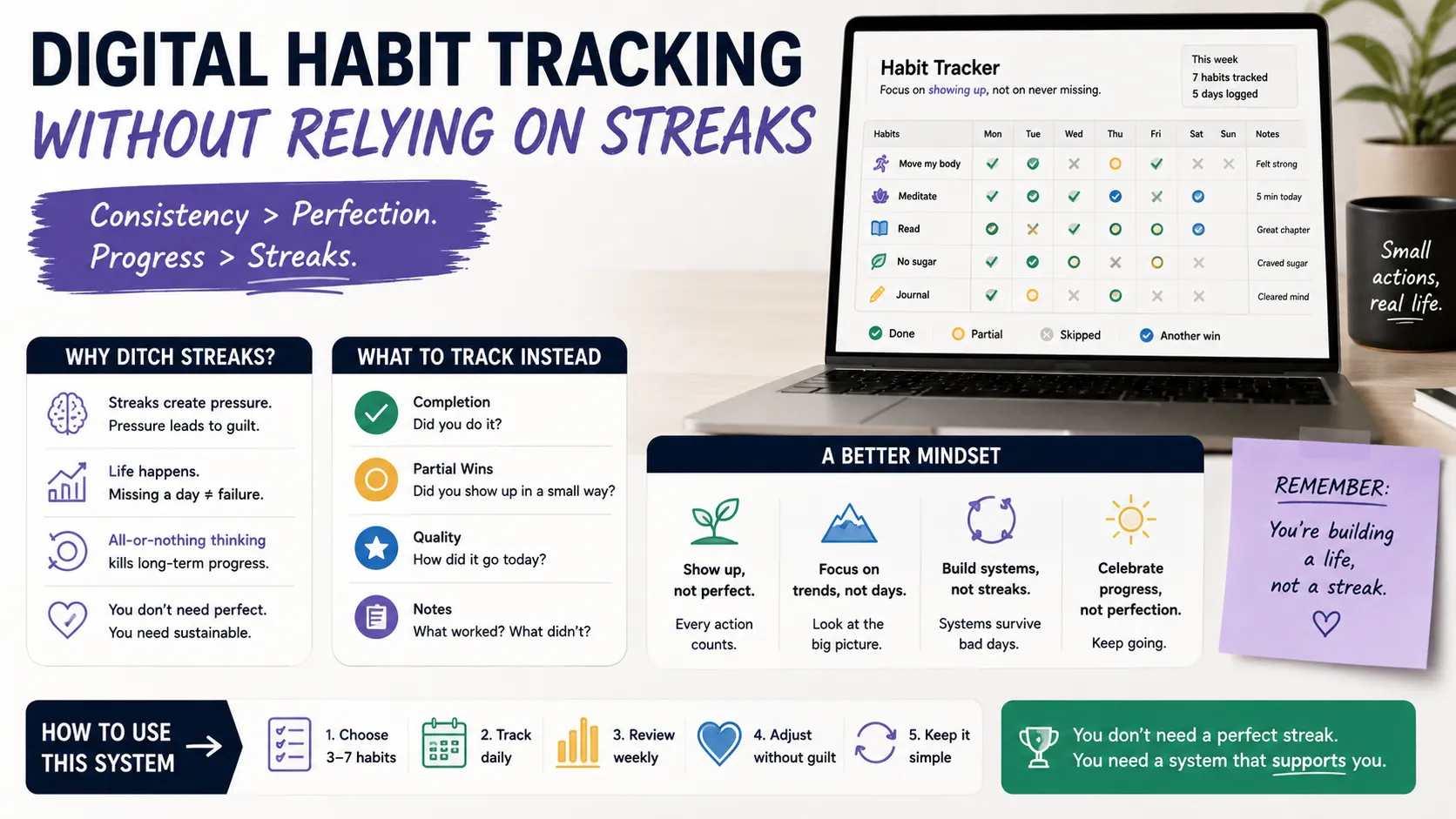
    Miss one day on a streak-based habit app and the whole thing resets to zero. For a lot of people, that single broken chain is enough to make them quit the app entirely, not just the habit. Digital habit tracking without relying on streaks is a different approach: instead of chasing an unbroken count, you log behavior, review patterns, and adjust, without a red notification guilting you back into the app.

    This matters more than it sounds. Streak counters were built to boost daily active users, not to help anyone actually change their behavior. A missed Tuesday shouldn’t erase three months of progress, and it shouldn’t feel like it does either.

    Below is a practical guide to tracking habits digitally without leaning on streaks: what to measure instead, which apps and setups support it, and how to build a system that survives a bad week.

    Why Do Streaks Backfire for So Many People?

    Streaks work by triggering loss aversion. Once a chain gets long, the fear of losing it becomes the main motivator, not the value of the habit itself. That’s a fragile kind of motivation. It works right up until life gets in the way, a trip, an illness, a chaotic week at work, and then it collapses all at once.

    There’s also the all-or-nothing trap. A habit tracked as a binary streak has no room for “I did half of it” or “I did it differently today.” Someone who walks 20 minutes instead of their usual 40 still gets marked as a failure, which quietly teaches the brain that partial effort doesn’t count.

    Behavioral researcher Katy Milkman has pointed out that constant streak pressure can shift a person’s focus from wanting to succeed to simply not wanting to fail. Those aren’t the same thing, and only one of them builds a habit that lasts.

    What Should You Track Instead of a Streak?

    If not a streak count, then what? A few metrics hold up better over the long run:

    • Frequency ratio: completions divided by opportunities (e.g., 4 out of 7 days), which absorbs the occasional miss without zeroing anything out
    • Consistency over a rolling window: a 30-day completion rate instead of a lifetime streak, so a bad week ages out naturally
    • Context tags: noting where, when, or under what conditions a habit happened or didn’t, which turns tracking into a diagnostic tool instead of a scoreboard
    • Effort level: a simple 1-3 rating for how the habit felt that day, since “did it, but it was rough” is useful data a streak can’t capture
    • Trend direction: is the rolling average going up, flat, or down over the last few weeks, which matters more than any single day

    None of these punish a missed day. They all treat one bad day as a data point, not a failure.

    Which Habit-Tracking Tools Support Non-Streak Methods?

    Several apps and setups are built around frequency and pattern tracking rather than daily chains. Here’s how the main options compare:

    Tool Core Method Best For Cost
    Loop Habit Tracker Frequency-based scoring, not strict daily Budget-conscious Android users who want flexible goals
    Free, open source
    Finch Self-care check-ins tied to a virtual pet, no visible streak counter People who want gentle accountability without pressure
    Free with optional in-app purchases
    Way of Life Long-range calendar view, chains are visual but not punitive Spotting patterns over months, not daily pressure Freemium
    Notion or Airtable template Fully custom database with rolling averages and tags Anyone who wants total control over metrics Free to low-cost
    Strides Multiple tracking types (target, streak-optional, project) People juggling several habit formats at once Freemium

    A private Notion or Airtable setup is worth calling out separately. Because you build the fields yourself, there’s no default streak widget nagging you, and you can log a rolling completion percentage instead of a chain. It takes more setup time than downloading an app, but it’s the closest thing to a tracker with zero built-in guilt mechanics.

    How Do You Build a Habit System Around Frequency Instead of Streaks?

    Start with the goal, not the count. Decide what “consistent enough” looks like for this specific habit, three times a week for strength training, five days for a reading habit, daily for medication. Frequency targets should match the habit’s real-world logic, not an arbitrary daily requirement.

    Log the miss the same way you log a win. If you skip a day, note why in a word or two: traveled, sick, overslept. Over a month, that short note turns into a pattern you can actually act on, instead of a blank space you feel bad about.

    Review weekly, not daily. Checking a rolling percentage once a week keeps the focus on trend rather than obsessing over a single day’s result. Daily streak-checking is exactly the behavior that made streak apps addictive in the first place; a weekly review breaks that loop.

    Automate the logging, not the guilt. A Shortcut, Tasker rule, or Zapier trigger that logs a habit automatically (say, when you arrive at the gym’s Wi-Fi network) removes friction without adding a reminder that scolds you.

    Let effort count. If a habit was harder than usual and you still showed up, that’s worth noting as a win, not diluting into the same checkbox as an easy day.

    Set a floor, not a ceiling. Instead of aiming for 100% completion, pick a realistic target like 70-80% and treat anything above that as a bonus. This changes the psychology of a missed day: you’re not breaking a perfect record, you’re still on pace for a target you planned to hit less than perfectly in the first place.

    What Does the Research Say About Non-Streak Tracking?

    Most of the evidence on habit formation points to consistency and cue-based repetition, not unbroken chains, as the thing that actually builds automaticity. A single missed day, according to the habit-formation literature that grew out of University College London’s work on habit strength, barely dents long-term formation. What actually derails a habit is the emotional spiral that follows a missed day, not the miss itself.

    That’s the real argument against streaks: they turn a neutral event, one skipped day, into an emotional one. Removing the counter doesn’t remove accountability. It just moves the accountability from a red banner to a weekly look at your own data.

    Frequently Asked Questions

    Is it bad to use a streak-based app if it’s working for me?

    No. If a streak keeps you consistent and you don’t feel anxious about breaking it, there’s no reason to switch. The frequency-based approach is mainly useful for people who’ve quit apps before after a broken streak.

    Can I track habits without any app at all?

    Yes. A simple spreadsheet or even a paper calendar with tally marks works, as long as you’re reviewing a percentage over time rather than counting consecutive days.

    Do habit tracking apps without streaks still send reminders?

    Most do, but the better ones let you separate reminders from progress tracking, so a missed notification doesn’t also feel like a failed streak.

    How long does it take to see a pattern using frequency tracking?

    Give it at least three to four weeks. Weekly percentages are noisy at first; a monthly rolling average is where real patterns, like which days you consistently skip, start to show up.

  • Best Second-Brain Systems Compared: Notion, Obsidian, and Logseq

    Best Second-Brain Systems Compared: Notion, Obsidian, and Logseq

    You bookmark an article, forget why it mattered, and three weeks later you are back on Google looking for the exact same answer.

    Classic chaos. A second brain system fixes that by turning your notes into an external memory you can actually trust.

    Notion, Obsidian, and Logseq are the big three people fight over, and honestly, they all work differently.

    Pick the wrong one, and your note-taking life can turn into a ghost town fast.

    This guide breaks down how each one really works, where each one falls apart, and who it is actually built for.

    We tested all three with the same setup: daily notes, project pages, and a research stash of about 400 notes.

    The differences showed up almost immediately.

    What Makes a Second Brain System Actually Work?

    The idea traces back to Tiago Forte’s PARA method (Projects, Areas, Resources, Archives), though plenty of people build second brains without ever reading his book. The core promise is the same regardless of the app: offload information so your working memory can focus on decisions instead of recall.

    A system earns the name “second brain” when it does three things well.

    • Capture is frictionless. If saving a note takes more than a few seconds, you’ll stop doing it within a week.
    • Notes connect to each other. Isolated notes in folders are just a filing cabinet. A second brain links ideas so old notes resurface when they’re relevant.
    • Retrieval beats organization. You don’t need a perfect folder structure if search and backlinks can find the note for you.

    Notion, Obsidian, and Logseq all claim to do this. They disagree on how.

    How Does Notion Handle a Second Brain?

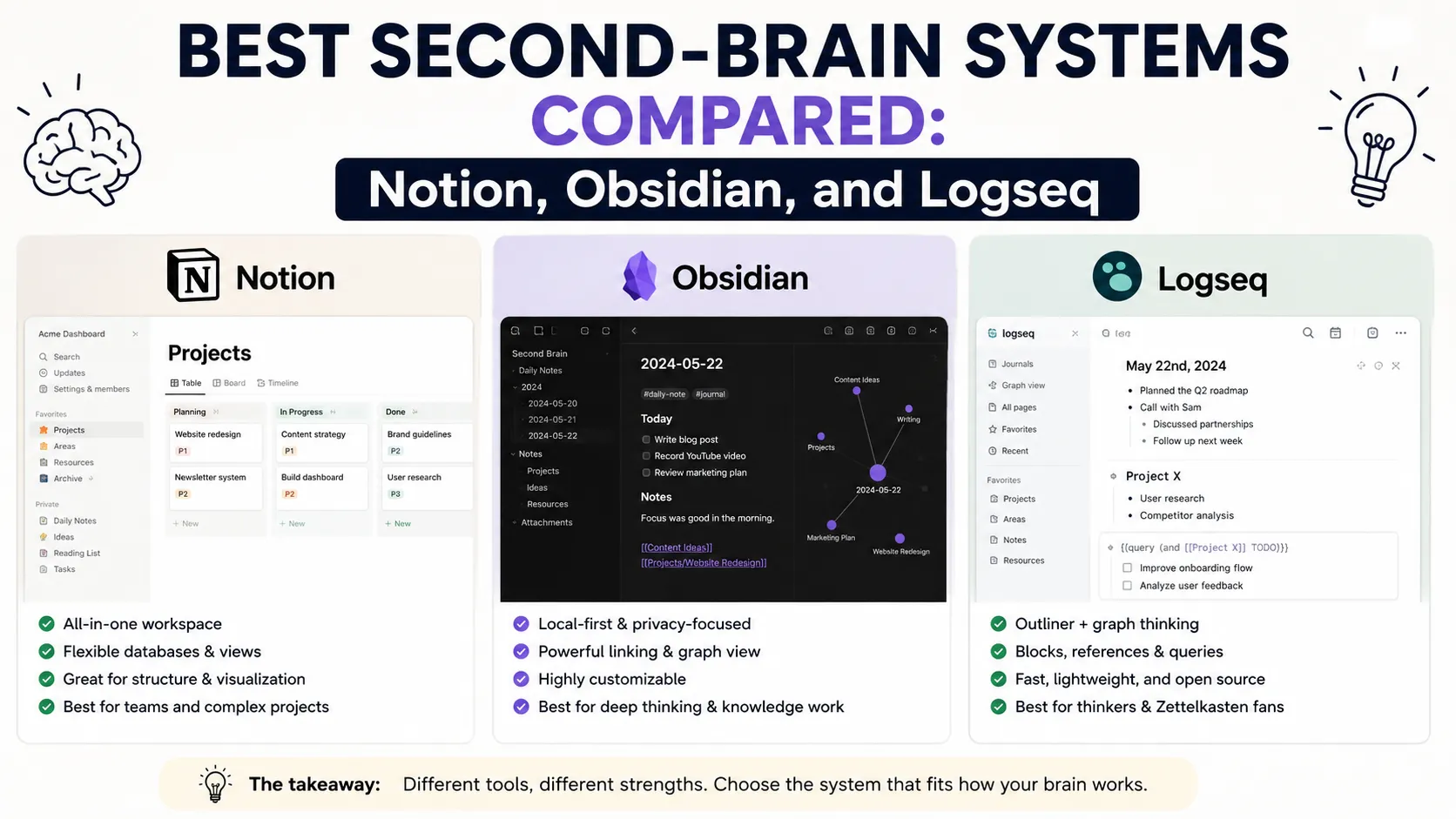
    Notion is a cloud-based workspace built around databases, not files.

    Pages can hold text, but also tables, kanban boards, and linked records, which makes it the closest thing to a project management tool with a notebook bolted on.

    For a second brain, that means you can build a PARA system with actual filters and views: a Projects database that rolls up tasks, an Areas database tagged by life domain, a Resources database you can filter by topic.

    If you like structure and you’re already comfortable with spreadsheets, this clicks fast.

    The tradeoff is speed. Notion pages load over the network, and heavy databases with hundreds of entries can lag, especially on mobile. It’s also cloud-only by default, so if Notion’s servers go down, so does your second brain.

    How Does Obsidian Handle a Second Brain?

    Obsidian stores everything as plain Markdown files on your own device. There’s no proprietary format, no server dependency, and no subscription required for personal use. The core feature that makes it a second-brain favorite is bidirectional linking: when you type [[note name]], Obsidian creates a link both ways, and a graph view shows how your notes cluster together.

    This is where Zettelkasten-style thinking shines. Instead of filing a note under one folder, you link it to five related ideas, and months later you rediscover the connection through the graph instead of hunting through a directory tree.

    Obsidian’s learning curve is steeper than Notion’s. There’s no built-in database view unless you install a community plugin like Dataview, and the interface rewards people who are willing to tinker. But because your notes are just files, you can back them up anywhere, sync them however you want, and never worry about a company shutting down and taking your archive with it.

    How Does Logseq Handle a Second Brain?

    Logseq is the outliner of the three. Every note is built from nested bullets rather than freeform paragraphs, and the app defaults to a daily notes page where you dump whatever’s on your mind, then link pieces of it to permanent topic pages later.

    If your thinking is naturally list-shaped, this workflow is fast. You don’t decide where a thought “belongs” before writing it down; you capture it in today’s log and connect it afterward. Logseq is also free and open source, stores files locally like Obsidian, and supports the same [[wiki-link]] syntax.

    The rough edges show up in polish. Logseq’s mobile app and sync have historically lagged behind Obsidian’s, and the plugin ecosystem is smaller. For a lot of users that’s a fair trade for paying nothing and owning their data outright.

    Which Second-Brain System Fits Your Thinking Style?

      Notion Obsidian Logseq
    Storage Cloud, proprietary Local Markdown files
    Local Markdown/Org files
    Structure Databases, pages Linked documents, graph view
    Outliner, daily notes
    Learning curve Low to moderate Moderate to steep Moderate
    Offline use Limited (needs sync) Full offline support
    Full offline support
    Price Free tier; paid plans from ~$10/user/month Free for personal use; sync/publish are paid add-ons
    Free, open source
    Best for Teams, project tracking, database-style thinkers Long-term archives, Zettelkasten, people who like tinkering
    Fast daily capture, list-shaped thinkers, privacy-first users

    If you’re choosing between Notion and Obsidian specifically: Notion wins for collaboration and structured project data, Obsidian wins for a private, durable knowledge archive you fully own. Logseq sits closest to Obsidian in philosophy but trades some polish for a faster daily-capture habit and a zero-dollar price tag.

    What Happens If You Switch Tools Later?

    This is the question most comparisons skip, and it’s the one that actually matters two years into a second-brain system. Notion locks your structure into its database format. Move away, and your relational properties, rollups, and formulas don’t survive the export; you’re left with flat Markdown files and a rebuild ahead of you.

    Obsidian and Logseq both avoid that trap because your vault is just a folder of .md files sitting on your hard drive. Delete the app tomorrow and your notes still open in any text editor. That’s not a small detail. A second brain you’re building for the next decade should survive the death of whichever company made the software.

    Cost adds up differently too. Notion’s paid plans run from roughly $10 to $20 per user per month depending on tier, which is fine for a team but adds up over years for a solo user. Obsidian is free for personal use, with optional Sync and Publish add-ons priced around $8 to $16 a month if you want them. Logseq stays free across the board, including its own sync feature, though it launched later and still lags Obsidian’s in reliability.

    Frequently Asked Questions

    Is Notion or Obsidian better for a second brain?

    Notion is better if you’re collaborating with a team or want database-style views of your notes. Obsidian is better for a personal, long-term knowledge archive that stays under your control, since it stores files locally rather than on someone else’s servers.

    Do I need to learn Markdown to use Obsidian or Logseq?

    Not really. Both apps let you type normally and handle the formatting behind the scenes for bold, links, and headers. Knowing basic Markdown syntax helps once you want more control, but it’s not a prerequisite to get started.

    Can I switch from Notion to Obsidian later without losing my notes?

    Yes, though it takes some cleanup. Notion can export pages as Markdown, and you can import that export into Obsidian’s vault folder. Database views and relational properties don’t translate directly, so expect to rebuild those manually.

    What is the PARA method, and do I need to follow it exactly?

    PARA stands for Projects, Areas, Resources, and Archives, a four-category system for organizing notes by actionability rather than topic. It’s a helpful starting structure, not a rulebook. Plenty of people modify it once they see how their own notes actually cluster.

    The Bottom Line

    There’s no universal best second-brain system, only a best fit for how you think. Pick Notion if you want structured databases and easy collaboration. Pick Obsidian if you want a durable, private archive with a graph view that rewards linking ideas together over time. Pick Logseq if daily capture matters more to you than polish, and you’d rather pay nothing than fight a subscription.

    Whichever one you choose, start smaller than you think you need to. Pick one note-taking habit, like a daily log or a single running project page, and build outward from there instead of trying to architect the perfect system on day one.