Category: Uncategorized

  • How to Auto-Sort Tasks by Energy Level Using Automation

    How to Auto-Sort Tasks by Energy Level Using Automation

    Most task managers sort by due date or priority. Almost none of them ask the question that actually determines whether you’ll get something done today: how much energy does this task require, and how much do you have right now?

    Energy-based task sorting fixes that mismatch. Instead of staring at a flat list and picking whatever feels least overwhelming, you tag tasks by the mental or physical energy they demand, then automate the sorting so the right tasks surface at the right moments. Here’s how to actually build it.

    Why sort by energy instead of priority

    Priority tells you what matters. It doesn’t tell you what you’re capable of doing right now. A high-priority task that needs deep focus is a bad match for 4pm on a day you barely slept, and a low-effort task like replying to a quick email is a waste of your sharpest morning hours.

    Energy-based sorting solves a scheduling problem that priority-based sorting can’t: it matches the demand of a task to your current capacity, not just its importance.

    Step 1: Define your energy tiers

    Before any automation can sort tasks, you need a consistent way to label them. Three tiers is usually enough — more than that adds friction without adding much benefit.

    A simple starting framework:

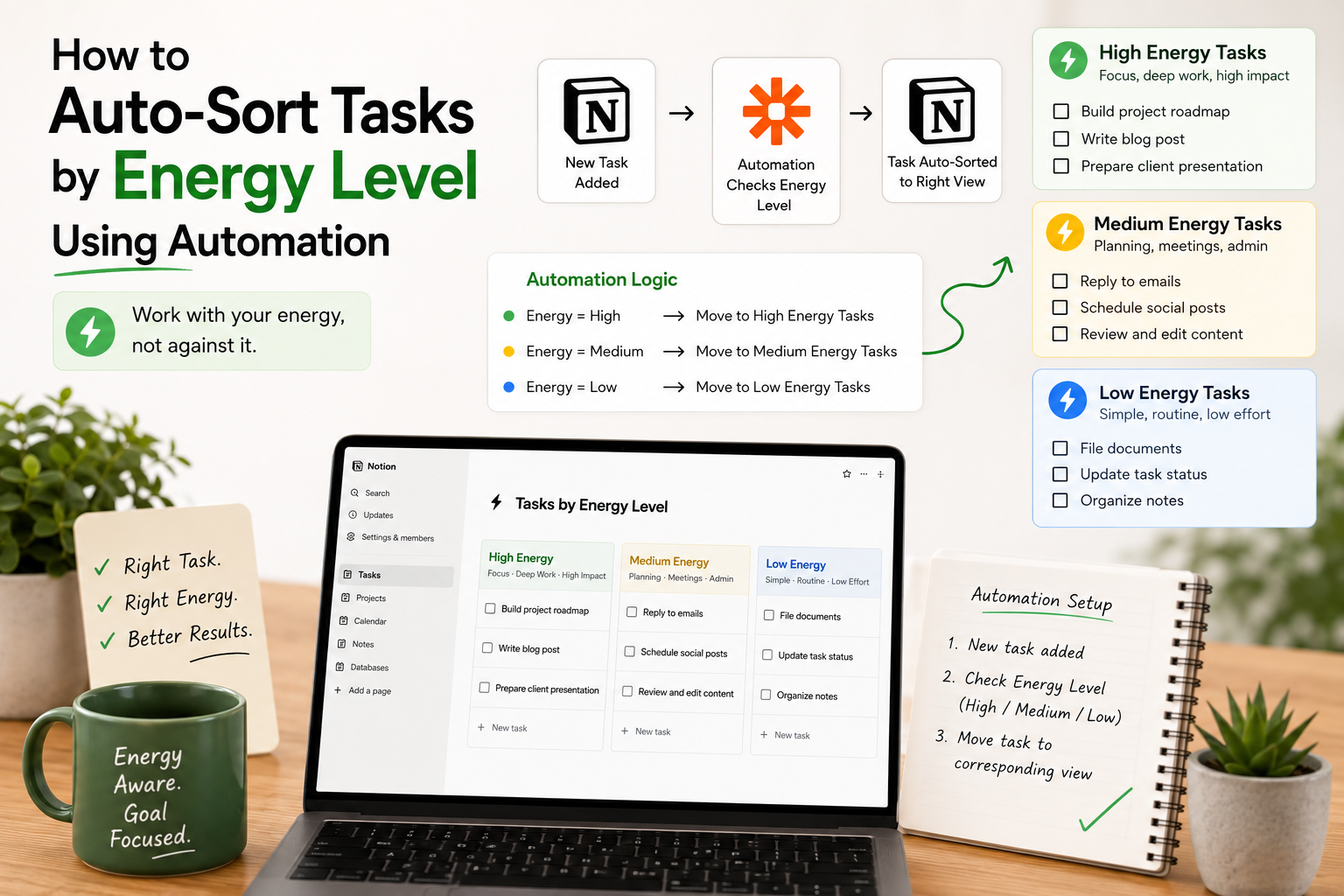
    • High energy — deep work, problem-solving, writing, anything requiring sustained focus or creativity
    • Medium energy — routine work that still needs attention: replying to emails, reviewing documents, scheduling
    • Low energy — quick, low-stakes tasks: filing, simple data entry, tasks you could do while distracted

    Add an “Energy Level” property to your task database (Notion, ClickUp, Airtable, or whatever you use) with these three options. This single field is what every automation below will key off of.

    Step 2: Tag tasks as you create them

    The system only works if tasks get tagged consistently. Two ways to make that happen without adding manual work:

    Build tagging into your capture process. If you use a template for new tasks, add the Energy Level field to the template with a default value, so you’re prompted to set it (or override it) every time you create a task, rather than remembering to add it later.

    Use conditional automation to pre-tag by category. If certain task types are reliably high or low energy — say, everything in your “Writing” project is high energy, everything tagged “Admin” is low energy — you can automate the tag itself: when a task is created in a given project or with a given tag, automatically set its Energy Level property. This removes the tagging step entirely for predictable task types.

    Step 3: Automate the sorting and surfacing

    This is where the real value shows up — not just labeling tasks, but getting the right tasks in front of you at the right times, without manually filtering every time.

    Time-of-day views. Many people’s energy follows a predictable daily pattern. Set up a recurring automation (or a saved, filtered view) that surfaces high-energy tasks in the morning and shifts to medium- or low-energy tasks later in the day. If your task tool supports scheduled automations, you can have it move flagged high-energy tasks to the top of your list first thing each morning.

    Energy-matched daily digest. Rather than one big task list, automate a daily message (Slack, email, or a Notion page) that groups your open tasks by energy tier. Instead of scanning a mixed list and deciding what to tackle, you open the digest and pick from whichever tier matches how you’re feeling.

    Low-energy fallback list. Automate a filtered view or a scheduled reminder that surfaces only low-energy tasks, and check it on the afternoons or days you know your focus is limited. Having this ready means a low-energy day doesn’t turn into a zero-output day — you still make progress, just on lighter work.

    Auto-reschedule high-energy tasks that get skipped. If a high-energy task sits untouched for a few days, it’s often a sign it keeps getting passed over because the right window of focus hasn’t shown up. An automation that flags or reschedules stale high-energy tasks — bumping them to the next likely high-focus day — keeps them from silently falling off your radar.

    Step 4: Adjust the system based on what actually happens

    Energy tiers are a starting hypothesis, not a fixed truth. After a couple of weeks, look at which tasks consistently get skipped or delayed, and check whether they’re mistagged. A task you keep avoiding at “medium energy” might really be a high-energy task in disguise. Treat the tags as adjustable, and let your automation reflect reality rather than your first guess.

    Keeping it simple

    The most common failure mode with energy-based systems isn’t the concept — it’s over-engineering it. A three-tier tag, a couple of filtered views, and one automated digest will get you most of the benefit. You don’t need a fourth energy tier, custom scoring formulas, or a dozen automation rules before you’ll notice a difference. Start with the smallest version that changes how you pick your next task, and only add complexity once you’ve felt where the simple version falls short.

    Final thoughts

    Sorting by energy instead of just priority or due date turns your task list from a static queue into something that actually adapts to your day. The automation isn’t the hard part — tagging consistently is. Get that right, and a few simple rules do the rest of the work for you.
  • A Task System for People Who Have Tried Every App and Nothing Works

    A Task System for People Who Have Tried Every App and Nothing Works

    You’ve probably downloaded every productivity app out there. Todoist, Notion, maybe even tried a bullet journal. It feels amazing… until a few weeks later, when you’re back to covering your laptop with sticky notes. Been there?

    The problem isn’t your discipline. The best task management system isn’t about finding the perfect app. It’s about creating a simple system that’s easy to keep using, even after a messy week. That’s exactly what you’ll learn below.

    Why Do Most Productivity Apps Fail Within a Month?

    Most task apps are designed by people who love task apps. That sounds like a joke, but it explains a lot. Features pile up because they’re possible to build, not because they solve a problem you actually have. Custom fields, tags, sub-projects, recurring task logic, four different views of the same list. All of it needs upkeep, and upkeep is exactly what falls apart during a busy week.

    There’s also a quieter issue: most systems assume you’ll use them every single day, at roughly the same time, with roughly the same energy. Real life doesn’t work that way. You’ll have days where you get eight things done before 9 a.m. and days where checking your phone feels like a chore. A system that only works on the good days isn’t a system. It’s a hobby.

    The fix isn’t a better app. It’s fewer moving parts.

    What Does a Task System That Actually Works Look Like?

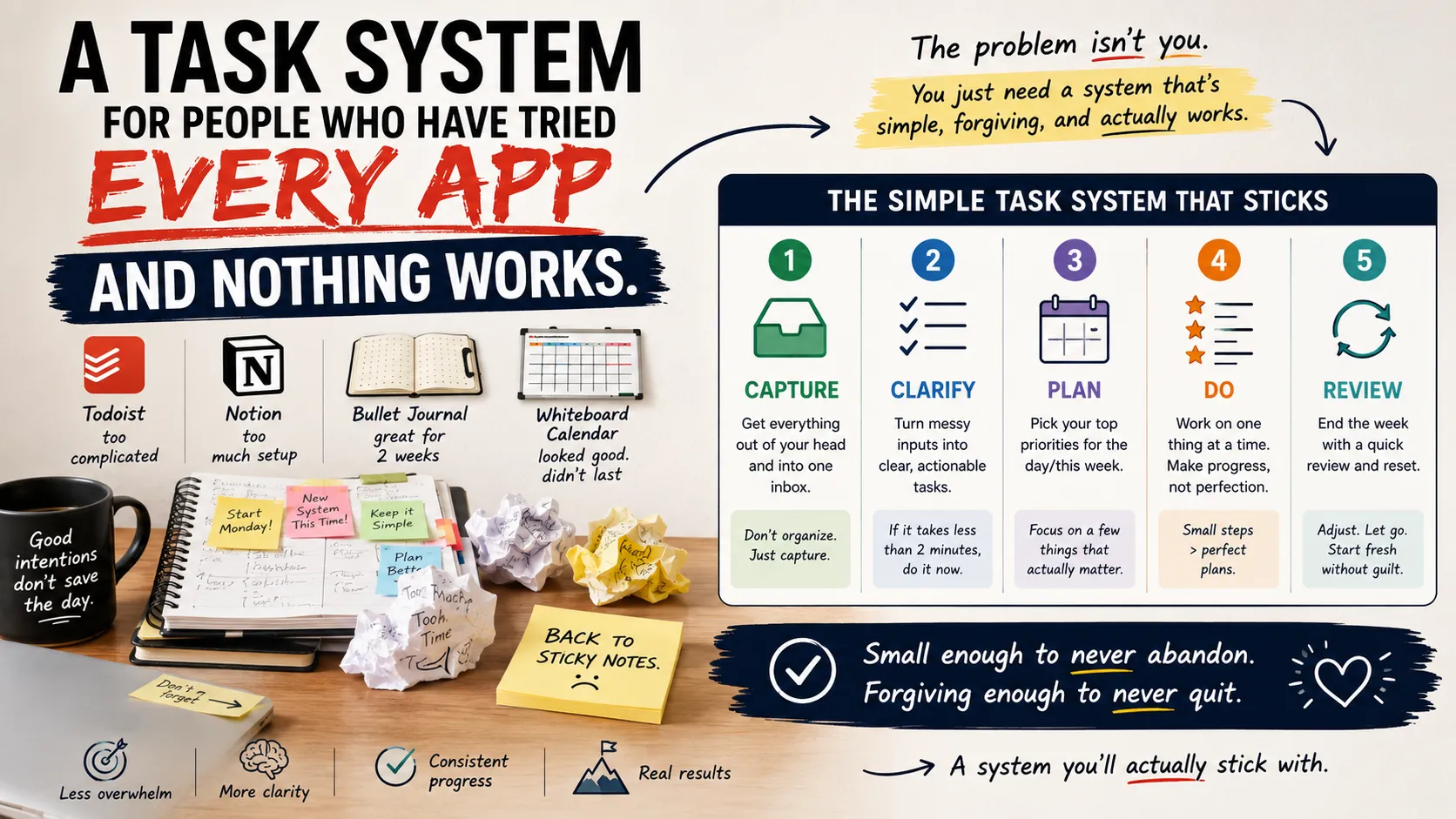
    Strip it down and a working system needs exactly three things: a single place to capture tasks, a way to decide what matters today, and a review habit short enough that you’ll actually do it. That’s it. Everything else, colors, tags, automations, is optional decoration you can add later, if ever.

    One Inbox, Not Five

    Pick one place. A notes app, a paper notebook, one Trello board, whatever. The tool matters less than the rule: every task, idea, and half-formed reminder goes into that one place the second it crosses your mind. Not into your email drafts, not into a sticky note, not into “I’ll remember it.” One inbox.

    This single change fixes more productivity problems than any feature ever will, because the reason tasks slip through the cracks usually isn’t forgetfulness. It’s that you wrote it down in three different places and checked none of them consistently.

    A Daily Three, Not a Daily Fifty

    Each morning, or the night before, pull three tasks out of your inbox and put them somewhere separate: a sticky note, the top of a page, a “Today” list. Just three. Not because you can only do three things in a day, but because three is small enough to finish, and finishing builds the habit that keeps the whole system alive.

    Anything beyond those three is a bonus. If you clear them and have energy left, grab more from the inbox. If you don’t, the day wasn’t a failure. You did the thing that mattered.

    A Five-Minute Weekly Reset

    Once a week, spend five minutes going through the inbox. Delete what’s no longer relevant, group anything related, and flag two or three tasks that matter for the week ahead. That’s the entire review. No elaborate retrospective, no color-coded quadrant chart. Five minutes, once a week, is sustainable in a way that a daily 30-minute planning ritual never will be.

    Comparing System Weight: Where Most People Should Start

    System type Setup time Daily upkeep Best for
    Common failure point
    Paper notebook, one list 2 minutes Under 1 minute People who abandon apps easily
    Losing the notebook
    Single app, one list (Apple Notes, Google Keep) 5 minutes 1–2 minutes People who want search + sync
    Adding extra lists over time
    Full project management app (Notion, ClickUp, Asana) 1–3 hours 10–20 minutes Team projects, complex workflows
    Overbuilding before daily use is a habit
    Bullet journal method 15–30 minutes 5 minutes Visual thinkers who like handwriting
    Perfectionism about layout

    If you’ve failed at three or more apps already, start in the top row. You can always add complexity once the habit itself is solid, though most people never need to.

    How Do You Stop Falling Off the System After a Few Weeks?

    The honest answer: you don’t, entirely. Everyone misses days. The difference between people who keep a system for years and people who abandon one every six weeks is what happens the day after a miss.

    Build in a rule ahead of time: missing a day costs you nothing except that day. You don’t owe the system a make-up session, and you don’t need to reorganize everything before you’re “allowed” to start again. Open the inbox, pick three tasks, keep going. Systems that survive are the ones designed to tolerate a bad week, not the ones that punish you for having one.

    It also helps to separate the system from the tool. If Notion burns you out, move the exact same three-part structure into a notebook. The rules are what make it work, not the software.

    What About Automation and AI Tools? Do They Actually Help?

    Sometimes, but only after the manual version is already working. Automating a task system before you’ve built the habit just gives you a more elaborate way to ignore your tasks. Once the daily-three habit is solid, a simple automation, like a recurring reminder or a template that auto-populates your weekly reset, can shave a minute or two off setup. That’s a real benefit. Just don’t let automation become the reason you keep tinkering instead of doing the tasks.

    Frequently Asked Questions

    What’s the best task management system for someone who has ADHD and has failed at every app?

    Start with the smallest possible version: one inbox and a daily three, on paper if apps have historically added friction. Fewer decisions and less screen-switching tend to matter more than any specific feature.

    How many tasks should be on a daily to-do list?

    Three core tasks, plus optional extras once those are done. Long daily lists are one of the main reasons people quit their system within a month.

    How do I get back on track after falling off a productivity system for weeks?

    Skip the full reset. Open your inbox, pick three tasks for today, and go. Treating a lapse as a reason to rebuild everything is usually what causes the next lapse.

    What’s the difference between a to-do list and a task management system?

    A to-do list is just a container for tasks. A system also includes a capture method, a daily filter (like the daily three), and a review rhythm. Those are the parts that keep the list from turning into a graveyard of untouched items.

    The Takeaway

    You don’t need a new app. You need fewer parts: one inbox, three tasks a day, five minutes a week to reset. If it’s simple enough to survive a bad week, it’s simple enough to still be running in a year, which is more than most of the apps in your download history can say.

  • Hello world!

    Welcome to WordPress. This is your first post. Edit or delete it, then start writing!