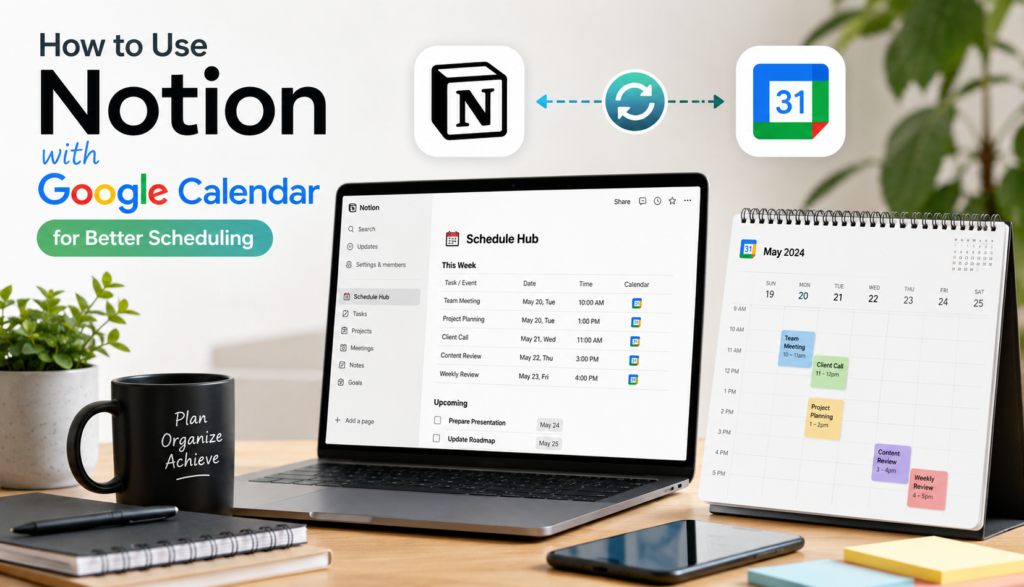
If you plan your work in Notion but live and die by Google Calendar, you’ve probably run into the same frustration: the two tools don’t talk to each other out of the box.
Tasks pile up in a Notion database, meetings sit in Google Calendar, and you’re the one manually keeping them in sync.
The good news is there are several ways to connect Notion and Google Calendar today, each with a different tradeoff between simplicity and how “connected” the two tools actually become. This guide walks through what’s possible right now, how to set each option up, and which one fits your workflow.
First, a reality check: there’s no native two-way sync
Notion Calendar (Notion’s own calendar app) can display your Google, Outlook, and iCloud events inside a unified view, and it lets you create and edit events that push back to those services.
But that’s a calendar-to-calendar connection — it doesn’t touch your Notion databases. Tasks, projects, and other items sitting in a Notion database won’t automatically show up as Google Calendar events, and edits you make in Google Calendar won’t update your Notion pages, unless you build that bridge yourself.
That’s the gap every method below is trying to close.
Option 1: Notion Calendar (best for a unified view, not database sync)
Notion’s own calendar app is the simplest starting point if what you want is one place to see everything.
What it does:
- Connects your Google, Outlook, or iCloud calendar
- Shows all your events in a single, clean calendar view
- Lets you create and edit events, which sync back to the connected account
What it doesn’t do:
- Pull items from your Notion task or project databases into the calendar automatically
- Turn calendar events into Notion pages
Good for: People who just want a visual overview of their schedule without switching between apps constantly. Not a fit if your goal is to have Notion tasks automatically appear as calendar events.
Option 2: Embed Google Calendar inside a Notion page (fast, but read-only)
If you just want your team or yourself to glance at a calendar without leaving Notion, embedding works in minutes.
How to set it up:
- In Google Calendar, go to your calendar’s settings and find the public URL (under “Integrate calendar”).
- Copy the embed or iCal link.
- In Notion, type
/embedand paste the URL.
Limitations: This is a read-only iframe. You can look, but you can’t click into events, create new ones, or link them to Notion content. It’s a display trick, not an integration.
Option 3: Automation platforms (Zapier, Make, n8n) — the flexible middle ground
This is where most people land when they want real automation without hiring a developer. Automation platforms connect Notion databases and Google Calendar through simple trigger-and-action “recipes” (often called Zaps).
A typical setup:
- Trigger: A new page is added (or a property is updated) in a Notion database
- Action: Create a corresponding event in Google Calendar, using the Notion page’s date property, title, and any other fields you map over
For example, you could build an automation so that every time you add a task with a due date in Notion, a matching event appears on your Google Calendar automatically — no more manually copying deadlines over.
Things to know:
- Most no-code automations run one-way (Notion → Google Calendar, or vice versa) rather than true two-way sync. If you edit the Google Calendar event afterward, that change typically won’t flow back into Notion unless you build a second, separate automation for the reverse direction.
- Recurring events and fields like attendees or meeting links often need extra configuration, since basic Zap templates don’t always handle them well.
- You’ll need a Zapier (or Make/n8n) account, plus your Google and Notion accounts connected as “apps” within the platform.
Good for: Teams that want tasks with due dates to automatically become calendar events, or calendar bookings to spin up Notion pages (e.g., client meetings that auto-create a notes page).
Option 4: iCal feed subscription (simple, one-way, near real-time)
A lighter-weight alternative to full automation: generate an iCal (.ics) feed from a Notion database and subscribe to it in Google Calendar.
How it generally works:
- Use a Notion-to-calendar feed tool to connect your Notion account.
- Select the database and the date property you want to use for event timing.
- Generate a private calendar feed URL.
- Add that URL as a subscribed calendar in Google Calendar.
Google Calendar will periodically refresh the feed (often every few hours, though some tools offer faster refresh on paid tiers). Edits stay one-way — from Notion to Google Calendar only.
Good for: People who want their Notion planning to show up on their phone’s calendar app without maintaining an automation platform.
Option 5: Dedicated two-way sync tools (for genuine two-way sync)
If one-way automation isn’t enough and you actually need edits in either tool to update the other — recurring events, attendee lists, meeting links, and all — this is the category built specifically for that.
These tools create real Notion database pages from calendar events and push Notion edits back to Google Calendar, rather than relying on a single-direction Zap.
Good for: Teams who treat both Notion and Google Calendar as active, editable systems and can’t afford for the two to drift out of sync.
Which option should you actually use?
| Your goal | Best option |
|---|---|
| See all your calendars in one place | Notion Calendar |
| Quick, view-only calendar on a Notion page | Embed |
| Auto-create calendar events from Notion tasks (one-way) | Zapier / Make / n8n |
| Lightweight, near-real-time one-way feed | iCal subscription |
| True two-way sync with full event details | Dedicated sync tool |
A simple starting workflow
If you’re not sure where to begin, this is a reasonable default:
- Install Notion Calendar and connect your Google account so you can see everything in one view.
- Set up a Zapier automation so that new Notion tasks with due dates automatically create Google Calendar events — this solves the most common pain point (forgetting to manually add deadlines to your calendar).
- Upgrade to a dedicated two-way sync tool only if you find yourself constantly editing events in Google Calendar and needing those changes reflected back in Notion.
Final thoughts
Notion and Google Calendar are built for different jobs — Notion for planning and context, Google Calendar for scheduling and reminders — and that’s exactly why connecting them is worth the setup time. Start simple with Notion Calendar for visibility, layer in automation for the tasks that matter most, and only reach for a dedicated two-way sync tool once you know exactly what “staying in sync” needs to mean for your workflow.
