You checked your phone. It said 2:14. You checked again, certain only a few minutes had passed, and it said 3:40. Nothing about that hour felt real. That gap between how time feels and how time actually moves is time blindness, and if it happens to you often, you already know how much damage it does to deadlines, appointments, and your own sense of trust in yourself.
Time blindness shows up most often with ADHD, but it isn’t limited to it. Anyone with a busy, distraction-heavy schedule can lose track of how long a task takes or how much time is left before the next commitment. The good news is that your phone and computer, the same devices that often make focus harder, can also be turned into a working set of time blindness tools. This guide walks through what actually helps, app by app, habit by habit.
What Is Time Blindness, Exactly?
Time blindness is difficulty sensing the passage of time without an external cue. It’s not laziness and it’s not a character flaw. Occupational therapists describe it as a breakdown in executive function, the brain’s internal “clock” that’s supposed to estimate duration and prompt transitions between tasks.
For someone without time blindness, an internal sense nudges them: it’s probably been twenty minutes, I should wrap this up. For someone with it, that nudge doesn’t fire. Twenty minutes and two hours can feel identical from the inside. That’s why external, visual, and auditory tools matter so much here. They replace the internal clock the brain isn’t reliably producing.
Common signs include:
- Arriving very late or absurdly early, with no in-between
- Losing an entire afternoon to a task that “felt like ten minutes”
- Chronic difficulty estimating how long errands, chores, or work will take
- Missing appointments despite genuinely intending to be there
- A pattern of last-minute cramming, even for things planned weeks ahead
How Do Digital Tools Actually Help With Time Blindness?
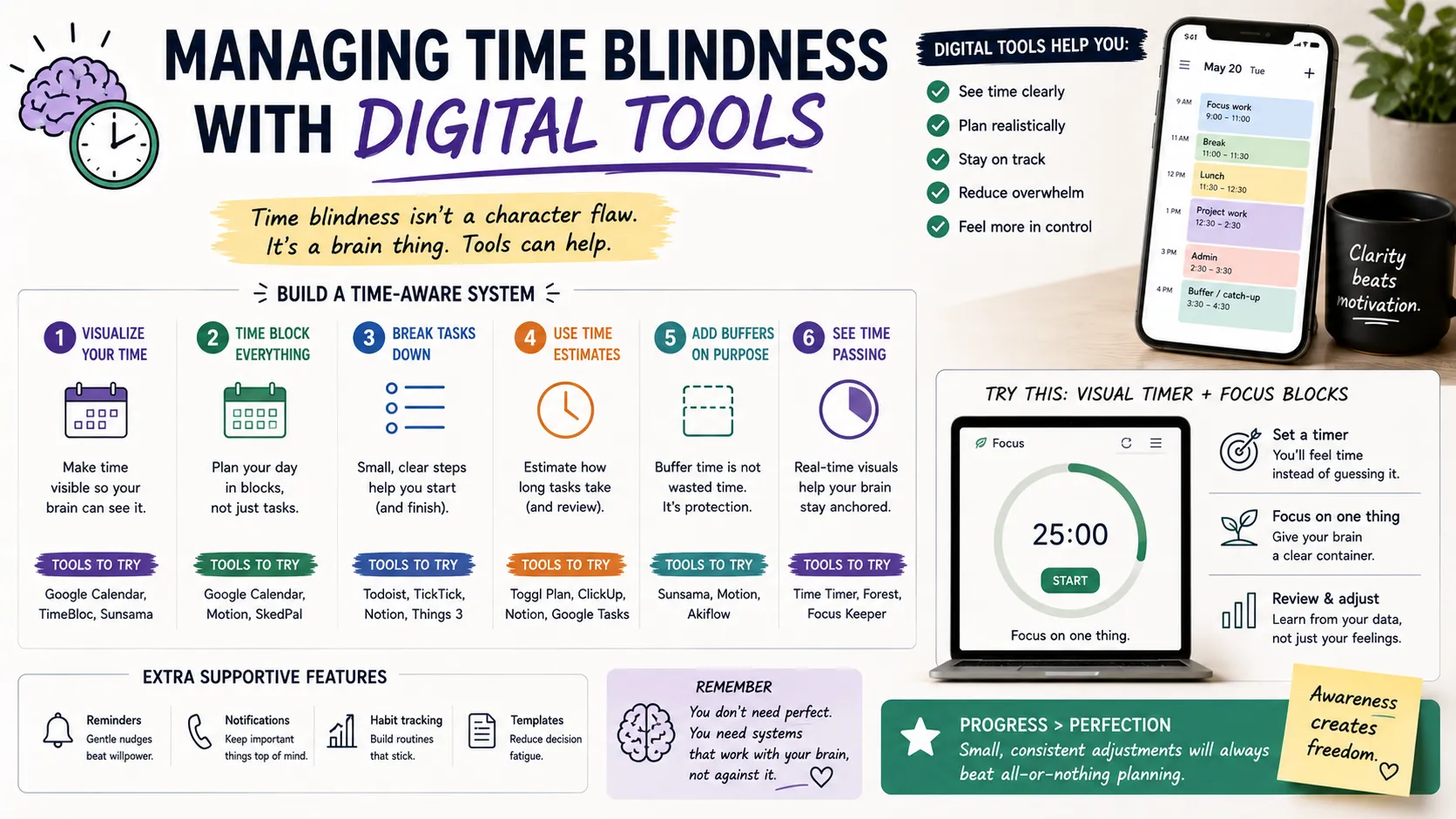
Digital tools work by externalizing time. Instead of relying on a felt sense of duration, you outsource that job to something you can see, hear, or feel buzz in your pocket. The goal isn’t a single miracle app. It’s stacking a few tools that cover different weak points: starting tasks, tracking duration, and remembering commitments.
Below is a comparison of the main tool categories worth trying, based on what shows up most often in ADHD and productivity communities.
| Tool Type | Best For | Example Apps | Cost |
| Visual timers | Making elapsed time visible during a task | Time Timer, Time Blindness Visualizer | Free–$35 |
| Pomodoro apps | Breaking work into focus/break intervals | Pomofocus, Forest | Free–$4/mo |
| Digital calendars | Scheduling and pre-commitment | Google Calendar, Fantastical | Free–$5/mo |
| Task time estimators | Predicting how long a task will take | Goblin Tools, Todoist | Free–$5/mo |
| Widget-based reminders | Keeping time and tasks visible at a glance | iOS/Android widgets | Free |
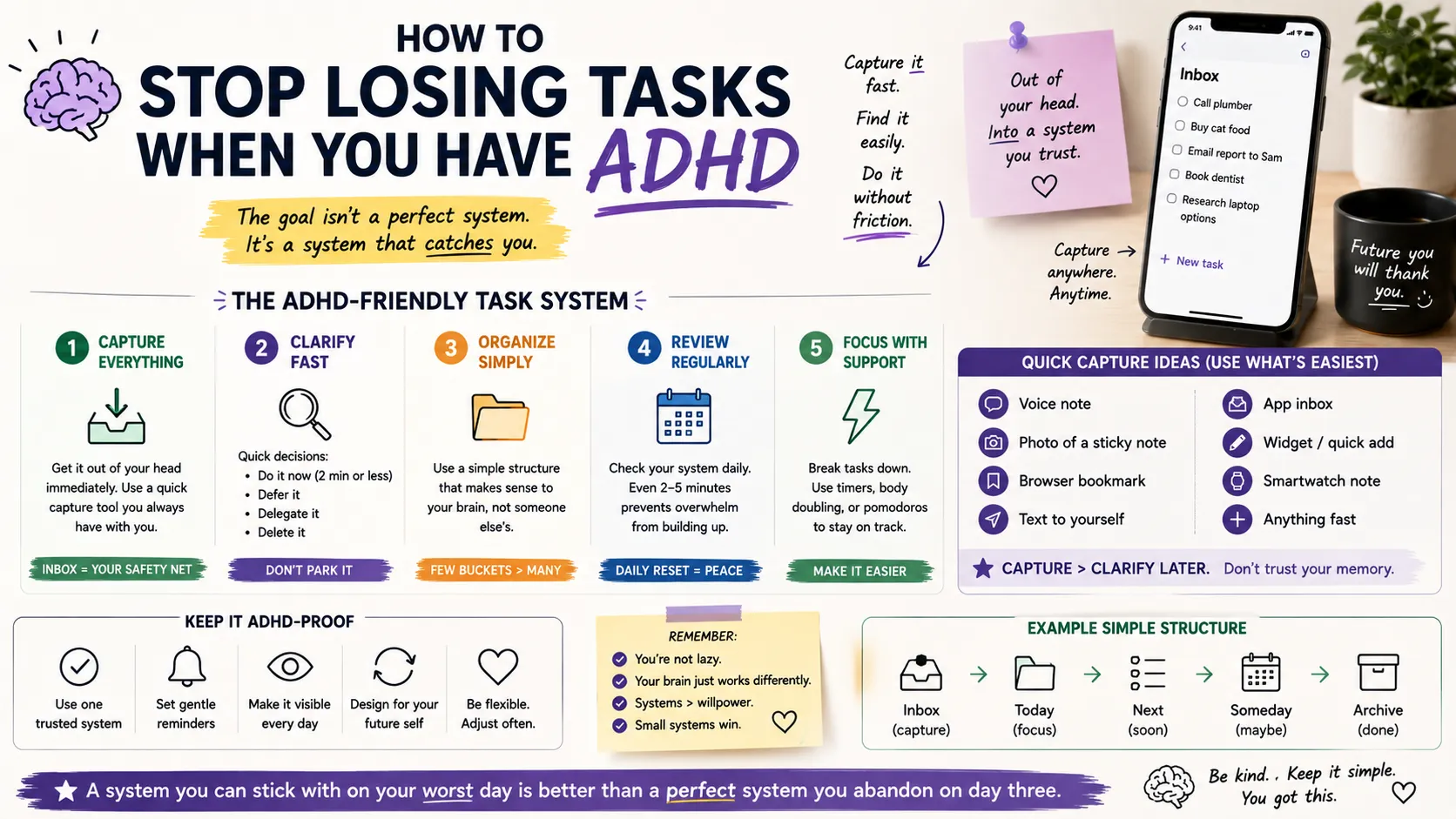
- Read Also: How to Stop Losing Tasks When You Have ADHD (Any App)
- Read Also: Breaking Down Big Projects Without Overwhelm
Visual Timers
A number on a screen doesn’t register the same way a shrinking shape does. Visual timers, like a ring or wedge that physically gets smaller, give your brain something closer to a felt sense of time running out. This matters because reading “14:32 remaining” still requires interpretation, and interpretation is exactly the step that time blindness disrupts.
Set one for any task with a real endpoint: a work sprint, a shower, a phone call you know tends to run long. The visual cue does the estimating for you.
Pomodoro and Focus Apps
Pomodoro apps split work into short, timed intervals, usually 25 minutes on and 5 minutes off. For time blindness specifically, the value isn’t really the productivity technique. It’s the forced checkpoint. Every 25 minutes, something interrupts you and asks: are you still on task, and how much time has actually gone by? Apps like Pomofocus or Forest add a small visual or gamified element, which tends to hold attention better than a plain kitchen timer app.
Digital Calendars and Pre-Commitment
A calendar only helps with time blindness if it’s loud enough to be noticed. Passive entries that sit quietly in an app don’t do much. What works better is stacking alerts: a reminder the night before, one an hour before, and one at the moment you need to leave. Google Calendar and Fantastical both support multiple alerts per event, and that redundancy matters more than which app you pick.
Buffer time is worth building in deliberately too. If a meeting starts at 10, set the calendar block to start at 9:45, with the label “leave now” rather than the meeting’s actual name. That small rename does a lot of the cognitive work for you.
Task Time Estimators
One of the sneakier parts of time blindness is chronically misjudging how long things take, usually underestimating. Tools like Goblin Tools include an estimator feature: describe the task, and it gives a rough time range based on similar activities. It won’t be perfect, but even a rough anchor is more useful than guessing from scratch, especially for tasks you don’t do often enough to have built intuition around.
Widgets and Ambient Visibility
The tools above only work if you actually see them. A reminder buried three taps deep in an app might as well not exist. Home-screen widgets for your calendar, to-do list, and a running clock keep time visible without requiring you to remember to check anything. On iOS and Android alike, this is a five-minute setup that pays off every single day.
Building a Simple Daily System
Individual apps help, but the real shift happens when a few of them work together as a routine. Here’s a workable starting setup:
- Morning: Open your calendar widget first thing and physically read through the day’s blocks, not just glance at them.
- Before each task: Set a visual timer or start a Pomodoro session, even for tasks that feel too small to time.
- Before leaving anywhere: Trust the calendar alert, not your own sense of “I have plenty of time.” That sense is exactly what’s unreliable.
- End of day: Spend two minutes comparing what you planned against what actually happened. Over a couple of weeks, this reveals your personal blind spots, like consistently underestimating commute time or overestimating how fast you write emails.
Frequently Asked Questions
Is time blindness a real medical condition?
Time blindness itself isn’t a standalone diagnosis, but it’s a recognized and well-documented symptom of ADHD and some other executive function conditions. It reflects a real difference in how the brain processes duration, not a lack of effort.
What is the best free app for time blindness?
There’s no single best option, since it depends on which part of time blindness trips you up most. Goblin Tools is a strong free choice for task estimation, Pomofocus for focus intervals, and Google Calendar for scheduling with multiple alerts.
How long does it take to build a habit around these tools?
Most people notice a difference within one to two weeks, though building it into an automatic habit tends to take closer to a month. Consistency matters more than finding the “perfect” app on day one.
Do I need multiple apps, or will one be enough?
One tool alone rarely covers everything. A calendar handles scheduling, a timer handles duration, and a task estimator handles planning. Most people end up combining two or three rather than relying on a single all-in-one solution.
- Read Also: Reminder Systems That Actually Work for ADHD Brains
- Read Also: A Digital System for Days When You Can’t Start Anything
Final Thoughts
Time blindness isn’t something you fix by trying harder to “be more aware.” It responds to structure you can see, hear, and feel, not willpower alone. Start with one tool, a visual timer is usually the easiest entry point, and add a second once the first one has actually stuck. Small, boring consistency beats a perfectly optimized system you abandon after a week.